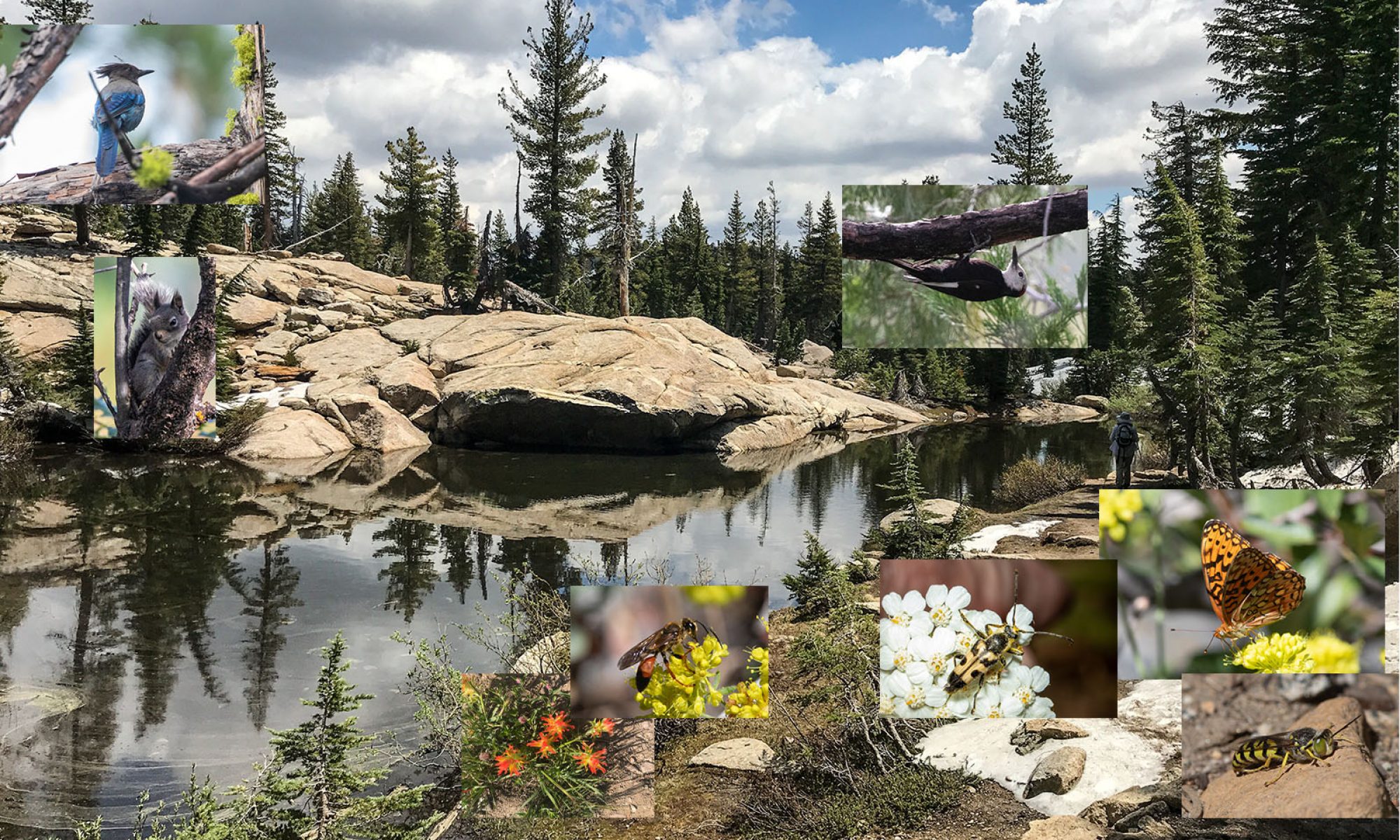
Interactive map shows locations and images.
Left-swiping a walk gives more walk options:
- Delete walk
- Privacy (remove GPS data)
- Move to a different header that’s off-screen
- Duplicate the walk
- Create a new walk from a slideshow
- Export an entire walk
Headers provide structure. Moving a collapsed header moves everything below it up to the next header. Left-swiping a header gives more options:
- Delete header
- Create a map of all walks beneath the header
- Run a slideshow of all walks beneath the header
- Share (email or web) all walks beneath the header
Connecting a device to a computer gives you better and higher quality transfer options..
- Create web pages that exceed the normal 20-megabyte email limit.
- Export a full walk record, including text, photos, and audio. Then import the entire walk into another device.
- Back up your entire NatureNotes database on your computer.
Importing photos taken by another camera.
- Any image from Photos can be imported into any record with the +Library Photo button.
- Any image from Photos can be imported into its own observation record with the Import Image button on the Edit Observations screen. The image will be positioned in the list according to its timestamp data. This is useful for automatic positioning of an image in a set of observations if you don’t already have a record that represents that image.
- Any set of images in a folder can be imported into a walk using the Main Menu function Import Photos to Walks. Images will be positioned by embedded timestamp data. If there is location (GPS) data in the photos, the map can be used to see exactly where the photos were taken, in sequence. This is a way to simulate a walk record without having used NatureNotes to record the walk. This function requires a cabled connection to a computer to transfer the image folder to the device.